
3 min
AI Assistant (Helion)
Use the command bar AI to get help, generate content, and navigate features.
1
Open the command bar
redsunplatform.com
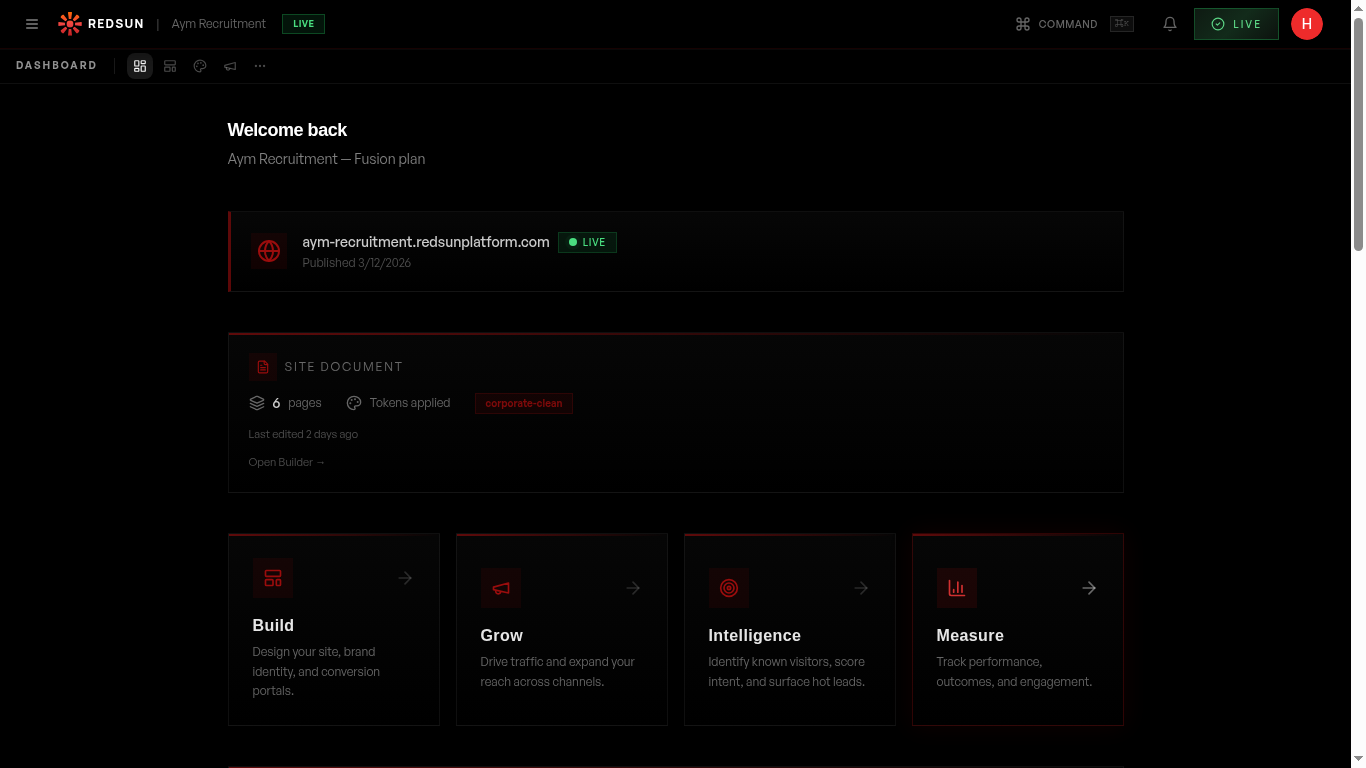
Press Cmd+K (Mac) or Ctrl+K (Windows) to open the Helion command bar from anywhere in the dashboard. You can also click the AI icon in the toolbar.
2
Ask questions
redsunplatform.com
Type natural language questions like 'How do I add a new page?' or 'Show me my traffic stats'. Helion understands context and guides you to the right feature.
3
Generate content
redsunplatform.com
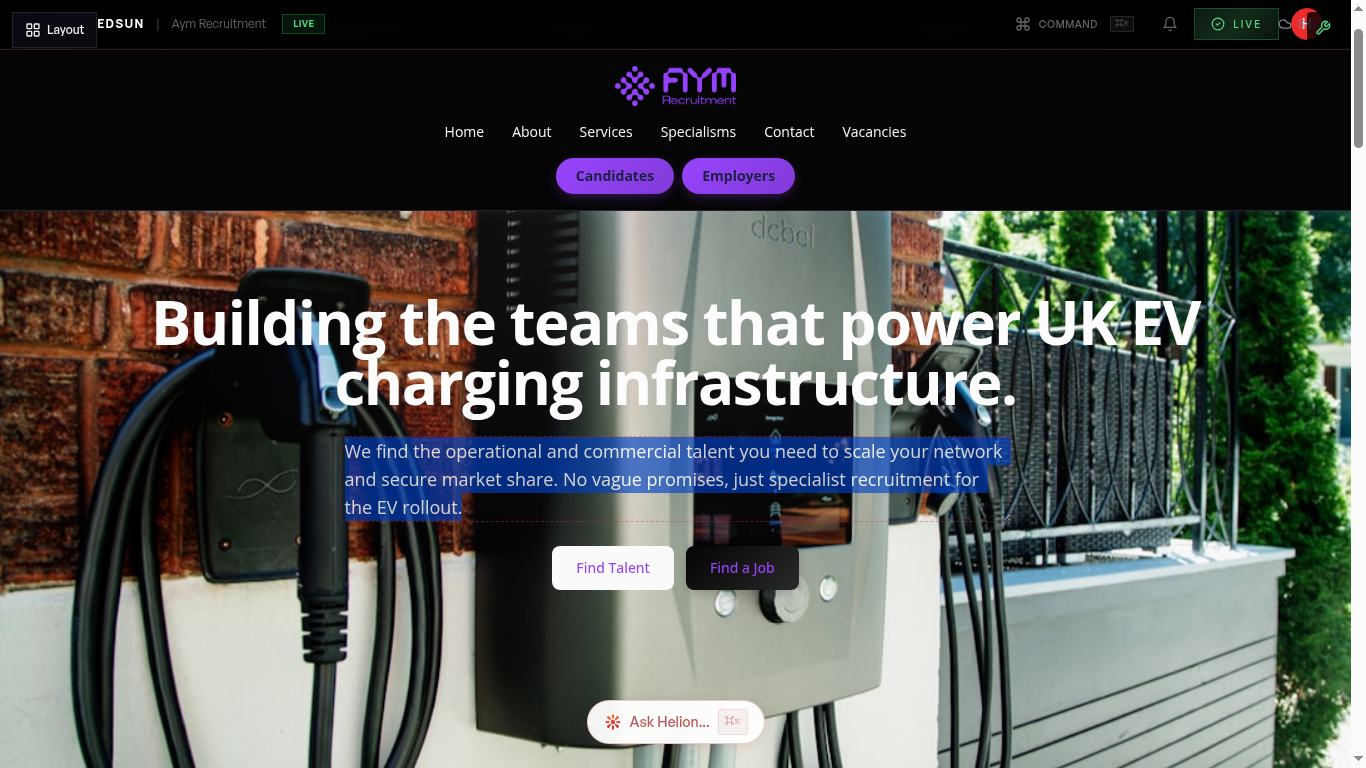
Ask Helion to generate copy, suggest improvements, or rewrite sections. It uses your brand voice and site context for relevant output.
4
Navigate quickly
redsunplatform.com
Use Helion as a quick navigation tool. Type a feature name to jump directly to it without clicking through menus.
Guide complete
You've covered all 4 steps. Check out the related guides below.
Still need help?
Our support team is here to assist you.