
Managing Pages
Add new pages, remove existing ones, and organise your site structure.
Add a new page
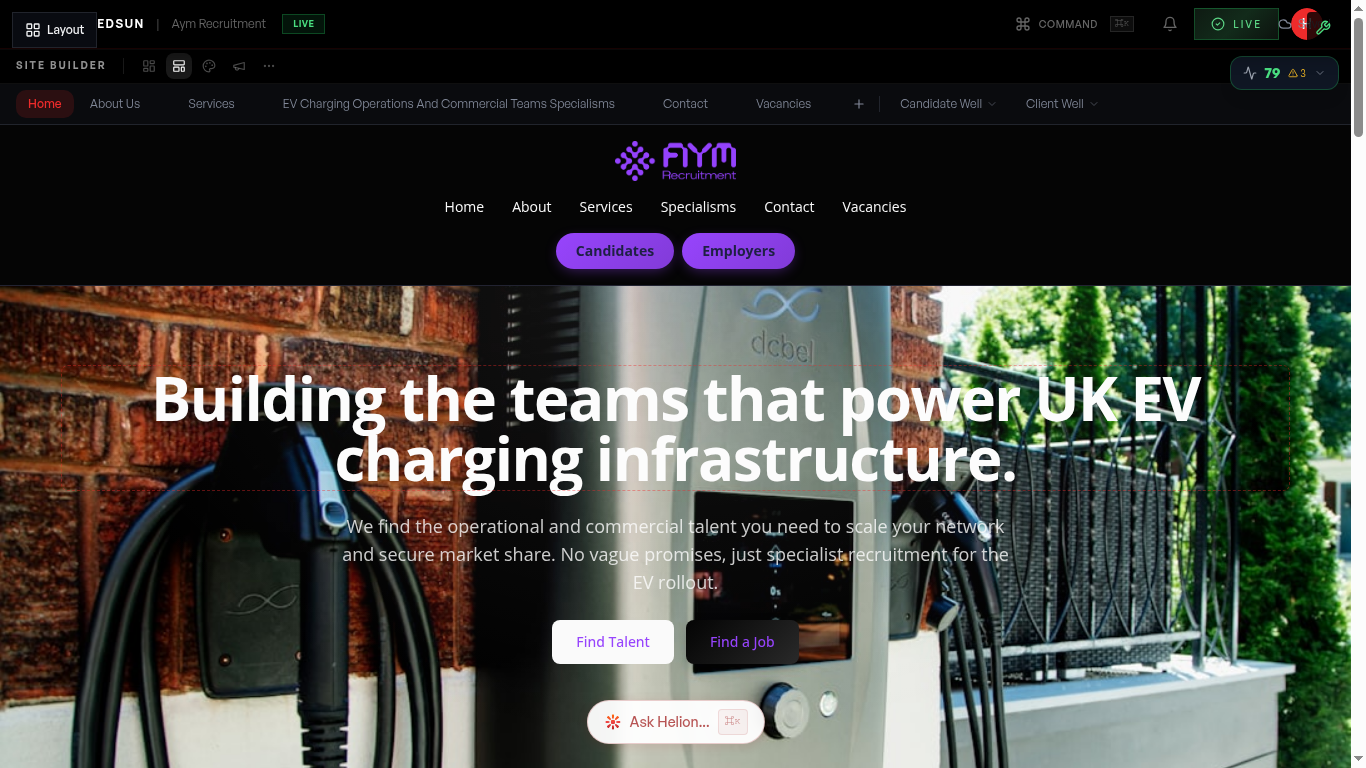
Click the '+' button next to the page selector or use the 'Add Page' option in the pages panel. Choose from pre-designed page templates or start with a blank page.
Name your page
Give your page a title and URL slug. The title appears in navigation menus and browser tabs. The slug determines the page URL (e.g. /about, /services).
Reorder pages
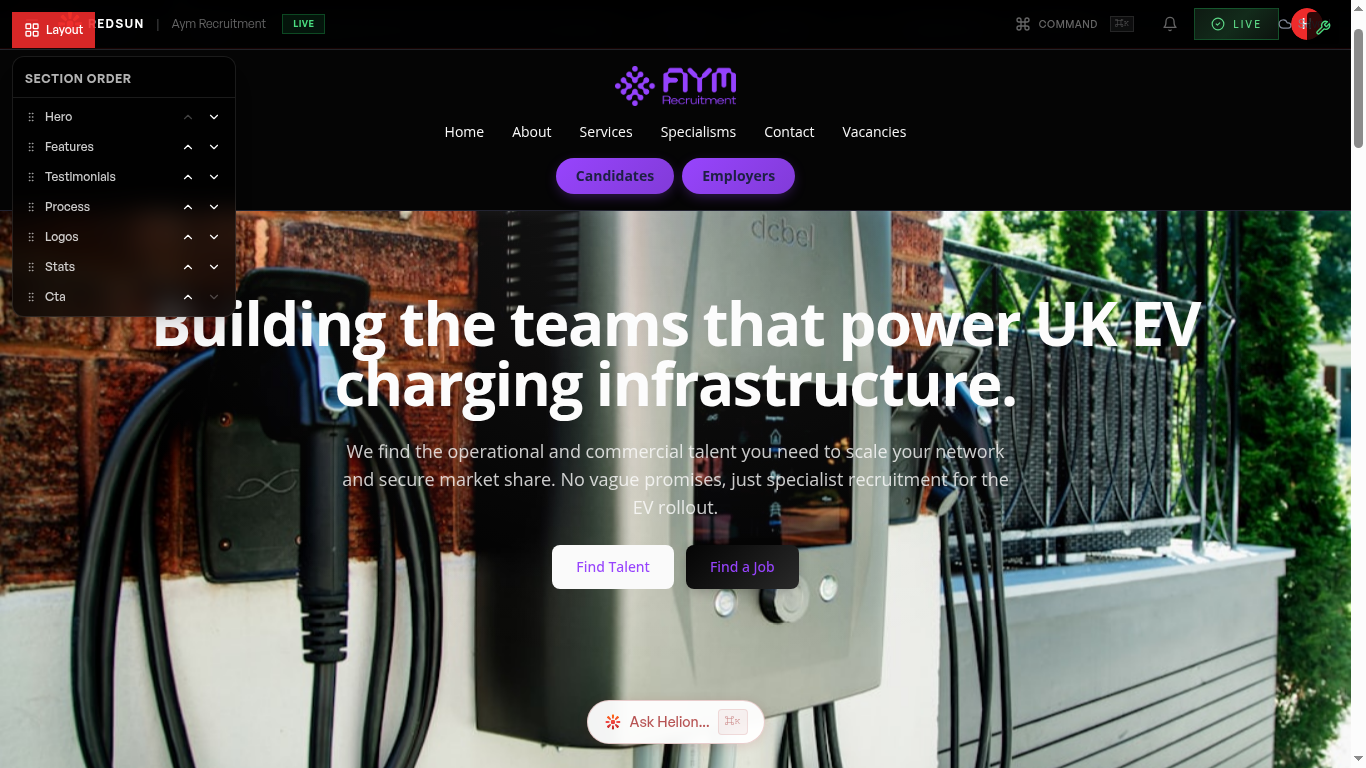
Drag pages in the page list to change their order. This affects the navigation menu order on your live site.
Remove a page
Click the options menu (three dots) on any page and select 'Delete'. You'll be asked to confirm. Note: the homepage cannot be deleted.
Navigation visibility
Toggle whether a page appears in your site's main navigation. Some pages (like landing pages) work better as standalone URLs without nav links.
Guide complete
You've covered all 5 steps. Check out the related guides below.
Still need help?
Our support team is here to assist you.