
Sector-Scoped Wells
Wells are auto-generated for each sector microsite with AI-enriched copy. No manual setup needed.
Automatic creation
When you create a sector microsite, wells are generated automatically at `/sectors/{slug}/candidate` and `/sectors/{slug}/hiring`. Both candidate and employer wells are enabled by default with the global settings as a starting point.
Created a 'Technology' microsite? It already has wells at `/sectors/technology/candidate` and `/sectors/technology/hiring`.
AI-enriched copy
During the microsite build, AI contextualises all well content for the sector: • Headlines reference the specific industry • Teaser cards mention sector-specific data points • Trust badges and CTAs use relevant language To regenerate, trigger a microsite rebuild from the admin dashboard.
The richer your sector configuration (research packs, market stats), the more specific the generated copy.
Per-sector overrides
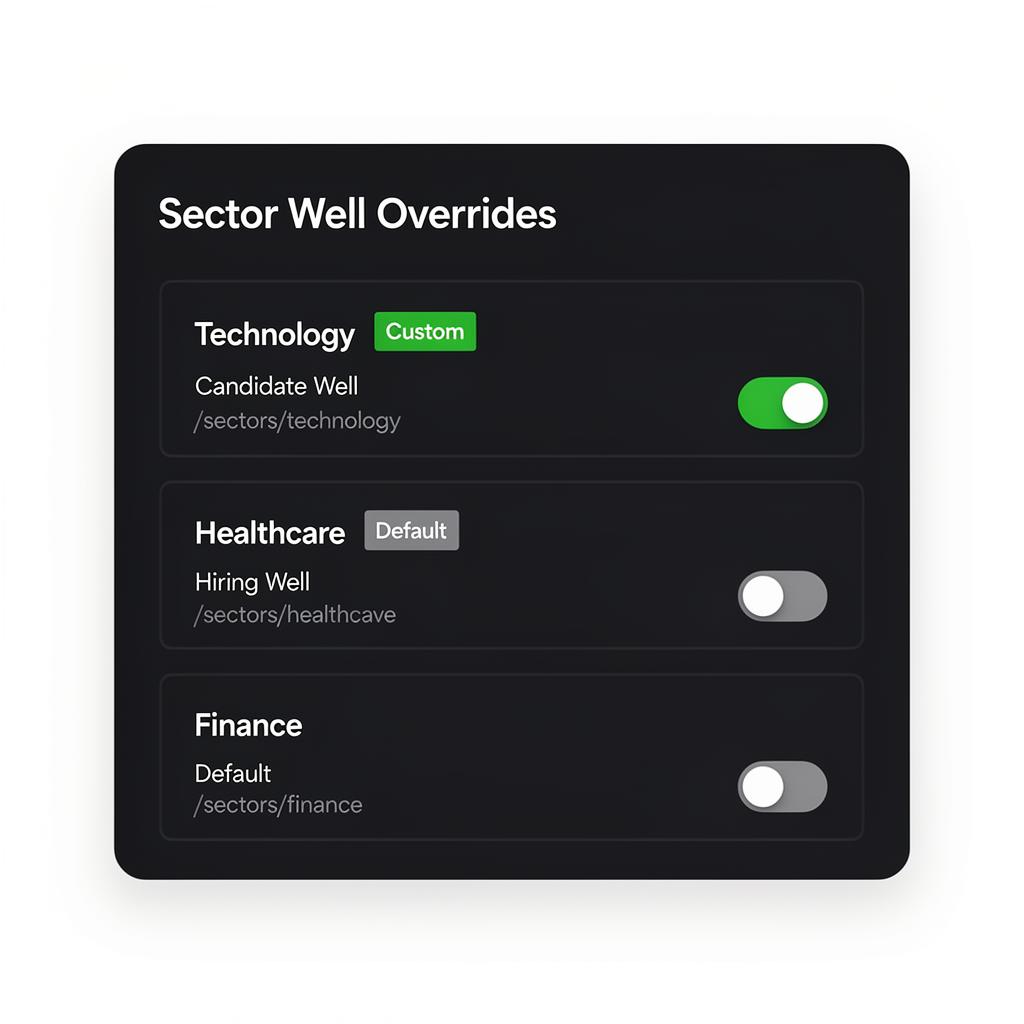
In the Wells tab, each sector appears under **Sector Well Overrides** with a 'Custom' or 'Default' badge. Expand any sector to see its toggles and link labels. The first edit auto-creates an override — no manual setup step.
Sectors without overrides inherit global settings. Enabling the global well enables it for all default sectors.
Sector-filtered results
When accessed via a sector URL, results sections filter data to that industry: • Sector Pulse shows industry-specific trends • Peer Benchmark compares within the sector • Talent Availability filters to relevant candidates Sections with no matching data are hidden automatically. Shareable URLs like `/sectors/technology/candidate` go directly to the sector well.
Sector filtering works best with a meaningful volume of data. AI-mapped sections (which don't depend on your pool) always provide value.
Guide complete
You've covered all 4 steps. Check out the related guides below.
Still need help?
Our support team is here to assist you.