
3 min
Hero Media Picker
Set images and videos for hero sections and visual backgrounds.
1
Open the media picker
redsunplatform.com
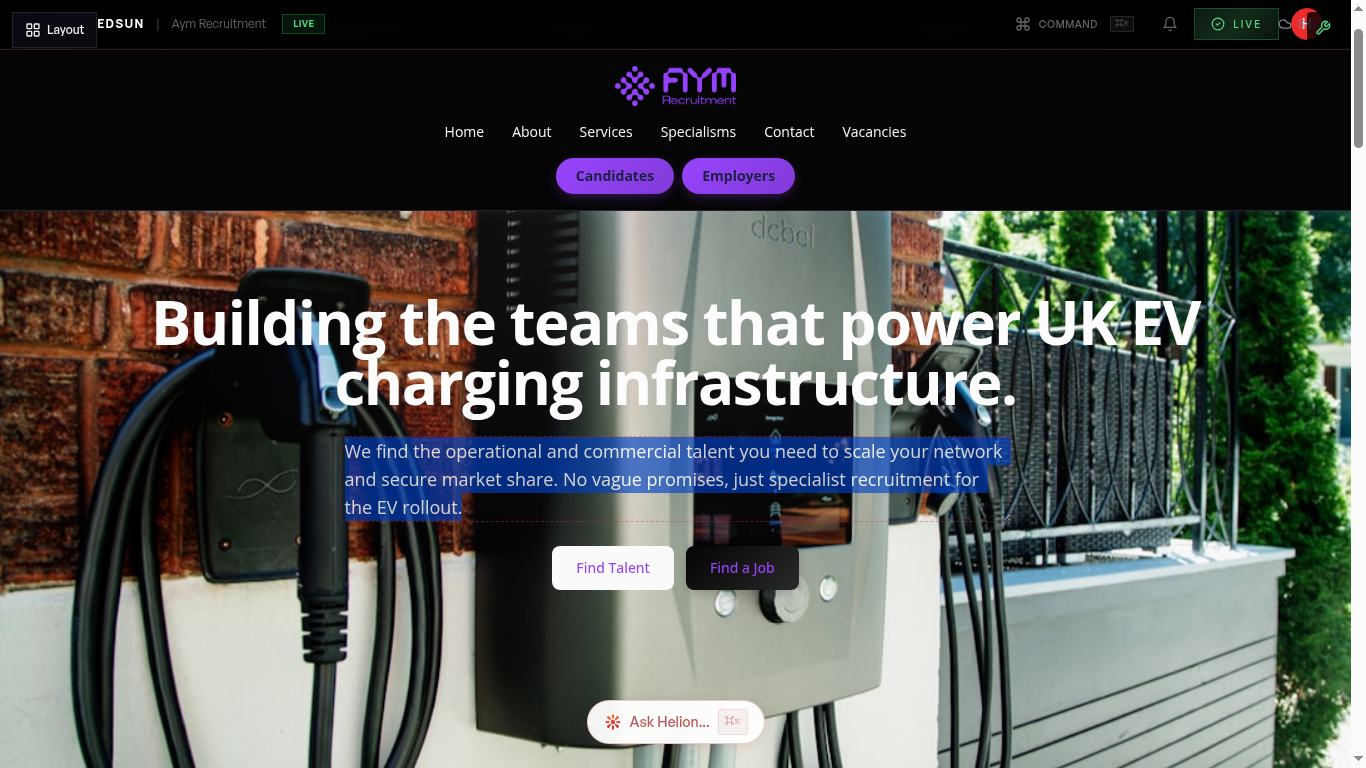
Click the image/video placeholder in any hero section to open the media picker. You can also access it from the section editing panel under 'Media'.
2
Upload images
redsunplatform.com
Drag and drop images or click to browse your files. Supported formats include JPG, PNG, and WebP. Images are automatically optimised for web delivery.
3
Add videos
redsunplatform.com
Upload video files or paste a video URL. Videos auto-play silently in hero sections, creating dynamic visual impact.
4
Adjust positioning
redsunplatform.com
Use the focal point selector to control which part of the image remains visible across different screen sizes and aspect ratios.
Guide complete
You've covered all 4 steps. Check out the related guides below.
Still need help?
Our support team is here to assist you.